



ICC profiles for sublimation: your complete setup guide
Download ICC profiles that match your exact printer model, ink brand, and paper stock. That combination is the whole game. Start with the vendor’s own download page, install the profile to your operating system, then run a single transfer test before committing to a production run.
The three immediate steps:
- Download a matching ICC from your ink or paper vendor (InkOwl, A-SUB, or your Epson dealer page)
- Install the .icc or .icm file to your OS colour system
- Run one test transfer and compare against your reference image
The ICC (International Color Consortium) defines the open standard that makes these profiles portable across software and hardware. Most sublimation workflows reference sRGB v4 as the source colour space, so understanding where your profile sits in that chain matters before you touch a single driver setting.
Key takeaways
Match your ICC profile to your exact printer model, ink brand, and paper stock, then manage colour in one place only — application or driver, never both.
| Point | Details |
|---|---|
| Match profile to your setup | Download the ICC that specifies your printer model, ink brand, and paper; a mismatched profile causes more problems than no profile at all. |
| One colour manager only | Set Photoshop (or your RIP) to manage colour and disable colour correction in the printer driver entirely. |
| Test before production | Press a test sheet with photo, flat graphic, and brand patch before committing to a full run. |
| Use the right rendering intent | Perceptual for photos and skin tones; Relative Colourimetric with BPC for brand colours and flat graphics. |
| Subliblanks product matching | Subliblanks supplies inks, papers, and blanks with known ICC support and can advise on the correct profile for your combination. |
Table of Contents
- Where to download ICC profiles for sublimation
- How to install ICC profiles on Windows and macOS
- How to apply ICC profiles in Photoshop, Lightroom, and RIP software
- Which rendering intent should you use for sublimation?
- How to test a new profile and when to commission a custom one
- Troubleshooting common colour problems with sublimation profiles
- A note on what we see at Subliblanks
- Subliblanks supplies the materials that make profiles work
- Sources
Where to download ICC profiles for sublimation
The most reliable starting point is always the vendor who made your ink or paper, not a random forum post.
Ink vendor hubs are the first stop for converted desktop printers. InkOwl publishes model-specific ICC downloads grouped by Epson printer model and operating system, with readme files that spell out recommended driver settings. A-SUB’s profile page follows the same pattern: select your Epson model, download the matching file, and follow the Windows installation steps included on the page. Both vendors organise files by printer model because a profile built for an Epson EcoTank ET-2800 will not behave correctly on an ET-15000. The ink volume, nozzle geometry, and paper interaction are all baked into the profile.
Paper manufacturer pages are worth checking even when you already have an ink-vendor profile. A paper-tuned profile accounts for the specific coating and absorbency of that sheet, which can shift colour noticeably on press. According to Printable Press, a paper-manufacturer profile tuned to the vendor’s own paper and ink will achieve a high level of accuracy close to that of a fully custom hardware profile, which is a meaningful shortcut for small shops.
Community profiles exist on forums and Facebook groups. Use them cautiously: you rarely know the press conditions, ink batch, or paper stock used when the profile was built, so treat them as a starting point for testing only.
When you open a downloaded ZIP, read the README first. It will tell you which driver settings to disable, which operating system the profile targets, and sometimes which rendering intent the vendor recommends. Some vendor profiles are Windows-only; macOS users may need to request an alternative or commission a custom build.
As SublimationGuides notes, some ink systems advertise ICC-free workflows. The practical test is simple: if your prints match expectations straight off the press, you may not need a profile at all. If they do not, installing the correct vendor ICC is the right next step.
How to install ICC profiles on Windows and macOS
Installation is quick, but the profile must end up in the right system folder or your software will not see it.
Windows:
- Right-click the .icc or .icm file and select Install Profile. Windows copies it automatically to
C:\Windows\System32\spool\drivers\color\. - Open Colour Management (search in Control Panel), go to the Devices tab, select your printer, tick Use my settings for this device, then click Add and choose your profile.
- Set it as the default profile for that device.
Adobe’s ICC profile distribution guidance confirms this path and notes that both .icc and .icm extensions are valid on Windows; they are the same format with different names. If you receive a file with neither extension, rename it with .icc before installing.
macOS:
- Copy the .icc file to
/Library/ColorSync/Profiles/for system-wide access, or to~/Library/ColorSync/Profiles/for your user account only. - Open ColorSync Utility and confirm the profile appears in the profile list. If it does not, check file permissions.
Pro Tip: Installing a profile does not activate it. You must also select it inside your print software or driver. A profile sitting in the system folder but not assigned to a job does nothing.
How to apply ICC profiles in Photoshop, Lightroom, and RIP software
The single rule that prevents most colour disasters: manage colour in one place only. Either your application manages it, or your driver does. Never both.
Photoshop is the most common workflow for sublimation shops, and the settings are specific:
- Go to File > Print, then under Colour Management set Colour Handling to Photoshop Manages Colours
- Select your printer’s ICC profile from the Printer Profile dropdown
- Set your rendering intent (see the next section for which to choose)
- In the printer driver dialogue, find the colour settings and set them to No Colour Adjustment or turn ICM off entirely
Leaving the driver’s colour correction active while Photoshop also manages colour is the most common cause of shifted hues and blown highlights. Hey, Let’s Make Stuff covers this double-management trap clearly and provides concrete driver settings for common Epson models.
Lightroom works similarly: in the Print module, set Colour Management > Profile to your printer ICC and Intent to your chosen rendering intent. Set the driver to no colour adjustment.
RIP software (such as Wasatch, Ergosoft, or Cadlink) typically manages colour internally. In that case, disable colour management in both Photoshop and the printer driver, and configure the ICC profile assignment inside the RIP. The RIP becomes the single colour manager.
Pro Tip: Before pressing, use Photoshop’s soft-proofing (View > Proof Setup > Custom) to simulate how your printer profile will render the image on screen. Pair this with a calibrated monitor for a reliable preview. It will not be perfect, but it will catch obvious problems before you waste transfer paper.
Which rendering intent should you use for sublimation?
The rendering intent controls how colours outside your printer’s gamut are handled. Getting this wrong is the second most common cause of colour problems after double management.
| Rendering intent | Best use case | Practical tip |
|---|---|---|
| Perceptual | Photos, skin tones, gradients | Compresses the whole gamut proportionally; relationships between colours are preserved even when individual values shift |
| Relative colourimetric | Brand colours, flat graphics, spot-colour matching | Clips out-of-gamut colours to the nearest in-gamut value; use Black Point Compensation (BPC) to avoid crushed shadows |
| Absolute colourimetric | Proof simulation, contract colour matching | Simulates the white point of the source; rarely useful for general sublimation production |
For most sublimation work, start with Perceptual for photographic images and Relative Colourimetric with BPC enabled for logos and brand patches.
The ICC white paper on the v4 sRGB preference profile explains that v4 and v2 profiles behave differently under perceptual intent because v4 encodes the perceptual rendering tables differently. When you mix a v4 source profile with a v2 output profile (or vice versa), some colour management modules handle the conversion inconsistently. The safest approach is to pair v4 profiles with v4 profiles throughout the chain. If your ink vendor supplies a v2 profile and your working space is sRGB v4, test carefully and consider switching your working space to sRGB IEC61966-2.1 (the standard v2 variant) for that workflow.
Paper and ink vendor profiles are the right choice for most small shops running consistent substrates. A custom hardware profile built with a spectrophotometer and profiling software (such as X-Rite i1Profiler or Barbieri Spectro LFP) becomes worthwhile when you need contract colour accuracy, run mixed substrates in the same batch, or see significant batch-to-batch variability in your ink or paper.
How to test a new profile and when to commission a custom one
A profile is only as good as your press conditions. Test it before trusting it.
- Print a test file that includes a photographic image, a flat-colour graphic, and a brand colour patch. Use the same paper and ink you profiled against.
- Transfer at your standard time and temperature. Note both settings precisely.
- After pressing, check highlight detail (should not blow out), shadow detail (should not block up), skin tones (should look neutral, not pink or orange), and any brand colours against a reference swatch.
- If the result is close but slightly warm or cool, adjust your monitor calibration first before touching the profile. A miscalibrated screen is often the culprit.
- If the result is consistently wrong across multiple tests, contact the vendor with your printer model, ink batch number, paper code, and a photo of the pressed output.
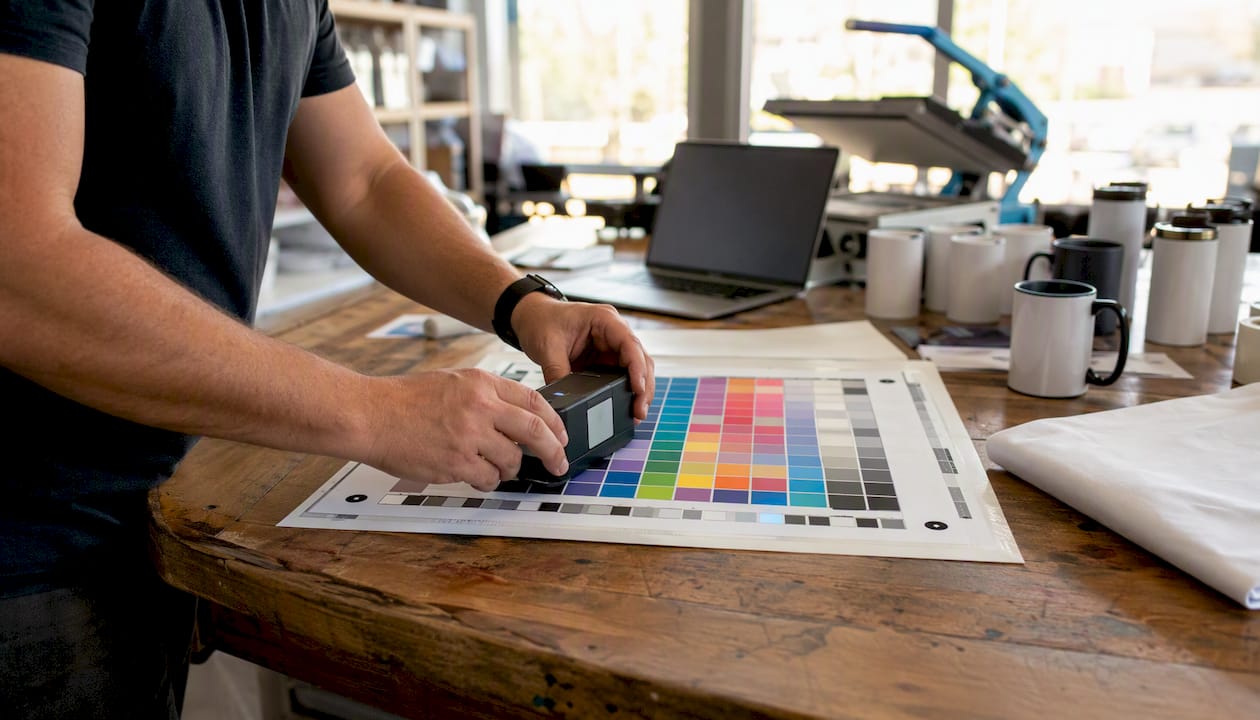
Some suppliers provide a colour chart or blanket you can press and compare against a printed reference. This is the fastest way to validate a profile without specialist equipment.
Pro Tip: Keep a profile library folder named by convention: [PrinterModel]_[InkBrand]_[PaperCode]_[Date].icc. When a batch changes, you can trace which profile was active and compare results systematically rather than guessing.
A custom hardware profile is worth commissioning when vendor profiles are not close enough, you are running multiple substrate types, or a client requires colour-match contracts. You will need a spectrophotometer and profiling software, or a local colour lab to do the build for you. The ICC profile library includes reference and test profiles useful for validating a custom build.
Troubleshooting common colour problems with sublimation profiles
Most colour problems trace back to one of three causes: wrong profile, double colour management, or press variables. Work through this list before assuming the profile itself is faulty.
- Pink or orange skin tones: The most likely cause is the wrong profile selected, or the driver’s ICM is still active alongside application colour management. Check that No Colour Adjustment is set in the driver and that the correct ink-and-paper profile is assigned in your software.
- Muddy or blocked-up blacks: Usually a press issue (too low a temperature or too short a press time) rather than a profile issue, though an incorrect rendering intent without BPC can also crush shadows. Check your press settings first, then enable Black Point Compensation.
- Washed-out highlights: Often double colour management. Confirm only one colour manager is active. Also check that your image is not already clipped before it reaches the printer.
- Colours look correct on screen but wrong on press: Your monitor is not calibrated to the profile’s colour space, or you are not soft-proofing. Calibrate your display and run a soft proof before pressing.
- Profile not appearing in software dropdown: The file is not installed in the correct system path, or the software needs to be restarted after installation. On Windows, re-run the right-click install; on macOS, check both the system and user library paths.
When contacting vendor support, provide: printer model and serial, ink brand and batch number, paper code, your OS and software version, driver settings screenshot, and a photo of the pressed output alongside your reference. That information cuts the back-and-forth considerably. For top sublimation printing tips that complement this troubleshooting list, the Subliblanks blog covers common operational pitfalls for small shops.
A note on what we see at Subliblanks
The most consistent mistake small shops make is not the profile itself. It is running the same profile across three different paper stocks because switching feels like extra work. The second is never checking whether the driver’s colour correction is still on after a Windows update quietly resets it.
At Subliblanks, we match customers to inks, papers, and blanks that have known, tested profiles available. That shortens the setup curve considerably. If you are setting up sublimation equipment for the first time, starting with a substrate and ink combination that has a vendor-supplied ICC means you are testing a known quantity rather than troubleshooting two variables at once.
Subliblanks supplies the materials that make profiles work
Getting the profile right is only half the equation. The substrate, ink, and press all have to match what the profile was built against.
Subliblanks supplies sublimation inks, transfer papers, blanks, and printer accessories, with no minimum order quantity. Whether you are running an Epson EcoTank converted for sublimation or a dedicated dye-sub printer, we can match you to the right consumables and point you to the correct vendor ICC for that combination. If a vendor profile does not exist for your setup, our team can advise on next steps, including custom profiling options.
Visit Subliblanks to browse the full product range or contact our support team for profile matching and setup guidance.
Sources
- A-SUB ICC Profiles - High-Quality Color Calibration Solutions
- How to set up ICC colour profiles for sublimation printing — Printable Press
- Sublimation ICC Profile: Setup, Workflow & Colour Fixes
Recommended
- Sublimation Equipment Setup Guide for Business Success – SubliBlanks Ltd
- Sublimation Terminology – Key Concepts for Small Businesses – SubliBlanks Ltd
- Sublimation Printing Step by Step for Personalised Goods – SubliBlanks Ltd
- Sublimation Transfer Process: Achieve Professional Prints Easily – SubliBlanks Ltd


