



Makers: Blank Stock Management, Templates, Lot Tracking and Checklist
Use an editable spreadsheet template with the core fields (item ID, description, location, quantity, unit cost, reorder point), and keep a printable version for physical counts. Microsoft’s Excel template gallery and Smartsheet’s free inventory templates both give you a working file in minutes, and both export cleanly to PDF for shelf or stall counts.
TL;DR:
- Use a dedicated inventory spreadsheet with item ID, description, location, quantity, unit cost, and reorder point to ensure accurate and manageable stock tracking.
- Regularly update stock counts immediately after transactions and record discrepancies with timestamps to maintain data accuracy and traceability.
- Build habits like duplicating the master file, using drop-down menus, and tracking batch or lot numbers to prevent common mistakes and facilitate audits.
- Transition to dedicated inventory software when managing several hundred SKUs, multi-channel sales, or experiencing frequent stock inaccuracies to avoid spreadsheet limitations.
- Rely on printable stock sheets with large count boxes and instructions for physical counts during stocktakes or in environments with unreliable Wi-Fi.
Table of Contents
- Where to find blank inventory templates that actually work
- What fields does a blank stock template need?
- How do you customise a blank spreadsheet template step by step?
- Printable stock sheets: when paper beats a screen
- When do you outgrow a spreadsheet for stock management?
- A working checklist for print and craft businesses
- Best practices for updating and auditing blank stock records
- Common mistakes in blank stock management and how to avoid them
- How blank stock tracking fits into wider inventory control
- How to train staff on blank stock templates without the chaos
- What most stock advice gets wrong
- Sources
Where to find blank inventory templates that actually work
You don’t need to build a tracker from scratch. Three sources cover most needs: Microsoft’s Excel template gallery, which includes editable inventory sheets with built-in formulas you can adapt; Smartsheet’s collection of free Excel inventory templates, organised by category from retail to food service; and Google’s own Sheets template gallery, which mirrors most Excel layouts for anyone working across devices.
Different jobs call for different template shapes:
- Simple stock list — one row per item, good for a small craft business with under 50 SKUs.
- Stock in/out ledger — logs every movement, useful once you’re shipping daily orders.
- Per-location tracker — splits quantity by shelf, van, or warehouse bay.
- Perishable or expiry template — adds received and use-by dates, essential for inks and coated blanks.
- Asset register — tracks equipment like printers or laser machines rather than consumable stock.
Most galleries offer downloads with no account needed, though a few Microsoft templates prompt you to sign in to save changes. Check the file extension before you commit. A .xlsx file opens natively in Excel and imports into Google Sheets with one click; the reverse conversion sometimes strips conditional formatting, so build your master in whichever platform your team actually uses day to day.
What fields does a blank stock template need?
Six fields separate a usable tracker from a spreadsheet that looks tidy but tells you nothing: item ID, item name or description, location, current quantity, unit cost, and reorder point. Leave any one of these out and you’ll be back in the file within a week adding it.
A functional inventory tracker needs, at minimum, an item ID, description, location, quantity, unit cost and reorder point, with conditional formatting flagging anything below threshold. That’s the baseline, not the ceiling.
Three formulas do most of the heavy lifting:
- On-hand quantity — a running total from your in/out ledger, so you’re never trusting a manually typed number.
- Stock value — quantity multiplied by unit cost, rolled up by category for a quick snapshot of what’s tied up in inventory.
- Reorder flag — conditional formatting that turns a row red or amber once quantity drops below your set threshold.
Beyond the minimum, a few optional fields earn their place fast if you handle print or craft supplies: batch or lot number, supplier name, received date, and expiry date. For sublimation ink or 3D printing filament, a batch number is the difference between tracing a defect to one delivery and re-checking your entire shelf.
How do you customise a blank spreadsheet template step by step?
Downloading a template is the easy part. Making it fit your actual stock takes a bit more care, but the process is short:
- Duplicate the file first. Save the original as a read-only master and work from a copy, so a broken formula never costs you the whole system.
- Build your item IDs and categories. A simple prefix system (INK-001, BLNK-002) makes items easy to sort and filter later.
- Add drop-downs with data validation. Set fixed lists for location and category columns so nobody types “Shelf A” one week and “shelfa” the next.
- Layer in formulas and conditional formatting. Set up your totals, stock value column, and a colour rule that flags anything at or below reorder point.
- Add a “last adjusted” column. Log the date and who made the change every time stock is counted or corrected, so discrepancies are traceable rather than mysterious.
- Export a filtered view for physical counts. Hide columns you don’t need on the floor, set your print area, and save that view as a PDF count sheet.
Pro Tip: Name your master file with today’s version number (“Stock_Tracker_v4”) and never open it directly. Open the copy, work in the copy, and only merge changes back into the master once you’ve checked the formulas still calculate correctly.
Printable stock sheets: when paper beats a screen
A spreadsheet is the wrong tool the moment someone needs to walk a warehouse with a pen. Printables earn their place during cycle counts, market stalls or pop-up events with no reliable Wi-Fi, full physical stocktakes, and situations where temporary staff have no login to your spreadsheet at all.
Good printable design keeps things blunt:
- Big, empty count boxes rather than tiny cells that are hard to write in.
- A short reference SKU or barcode column so counts reconcile against the master sheet fast.
- One line of instructions at the top (“count units, not boxes”) to stop ambiguity between counters.
- Repeated header rows on every printed page, so nobody loses track of which column is which.
To produce one from your spreadsheet, set the print area to just the columns you need, scale to fit the page width, tick “repeat header rows”, and export straight to PDF rather than printing directly. That way you keep a record of exactly what was handed out for that count.
When do you outgrow a spreadsheet for stock management?
Spreadsheets handle small stock rooms brilliantly and start creaking at a fairly predictable point. Watch for a handful of scaling signals: you’re managing several hundred SKUs, selling across more than one channel, overselling items that show as in stock but aren’t, or spending more time reconciling numbers than actually managing stock.
Shopify’s guidance on small business inventory control makes the multi-channel case plainly: spreadsheets have no way to sync stock across a website, a marketplace listing, and a physical till at the same moment, so overselling becomes almost inevitable once you’re selling in more than one place at once. Dedicated software fixes that by acting as one shared source of truth, with real-time sync across locations, barcode or RFID scanning, automatic reorder triggers, and an audit trail that a spreadsheet simply can’t maintain on its own.
Run a quick checklist before you switch: how many transactions do you log weekly, how many physical locations hold stock, how much manual error can you tolerate, and how fast do you expect to grow in the next year. If two or more answers point toward “more than a spreadsheet can handle,” it’s worth pricing dedicated software rather than patching another formula onto the tracker you’ve got.
A working checklist for print and craft businesses
Running blanks, inks and filaments through a spreadsheet works well if you build a few habits around it early, rather than fixing them after a stock discrepancy costs you an order.
- Separate your master and working files. Keep one locked, dated master template and a working copy you touch daily; merge changes back on a fixed schedule, not ad hoc.
- Run small, frequent cycle counts. Counting a fraction of your stock weekly catches drift faster than one exhausting full count every quarter, and keeps formula integrity intact because fewer hands are editing at once.
- Log batch and lot numbers on consumables. Sublimation ink, coated blanks and filament all vary slightly between production runs; the inventory techniques Forbes Advisor outlines stress lot tracking specifically so a defect traces to one delivery, not your whole shelf.
- Note storage conditions for anything perishable. Ink and coated blanks degrade under heat or humidity, so a simple storage column saves a conversation nobody wants to have with a customer.
- Keep supplies stocked ahead of demand. A checklist for reliable sublimation blanks is worth pairing with your reorder points, and Subliblanks is a straightforward option when you need to top up blanks or consumables without hitting a minimum order.
Best practices for updating and auditing blank stock records
A spreadsheet only stays accurate if updating it becomes a habit rather than an afterthought. The single biggest cause of bad stock data isn’t a broken formula, it’s someone meaning to log a sale “later” and never getting round to it.
Update quantities the moment stock moves, not at the end of the day. A five-second entry after each sale or delivery beats trying to reconstruct twelve transactions from memory at closing time. If that’s not realistic for your team, set a fixed check-in time, midday and end of day, rather than leaving it open-ended.
Auditing works best in small, regular doses. When a count doesn’t match the sheet, log the discrepancy with a date and a likely cause rather than just overwriting the number. That “last adjusted” column earns its keep here: it turns a mystery into a pattern you can actually investigate, whether that’s a supplier shorting a delivery or a member of staff forgetting to log an adjustment.
Lock down who can edit which columns. Letting everyone edit unit cost or reorder point invites accidental changes that break your formulas weeks later, often without anyone noticing until the numbers stop making sense. Restrict those columns to one or two people, and let everyone else update quantity only.
Common mistakes in blank stock management and how to avoid them
Most stock tracking failures come down to a handful of repeatable mistakes rather than bad luck.
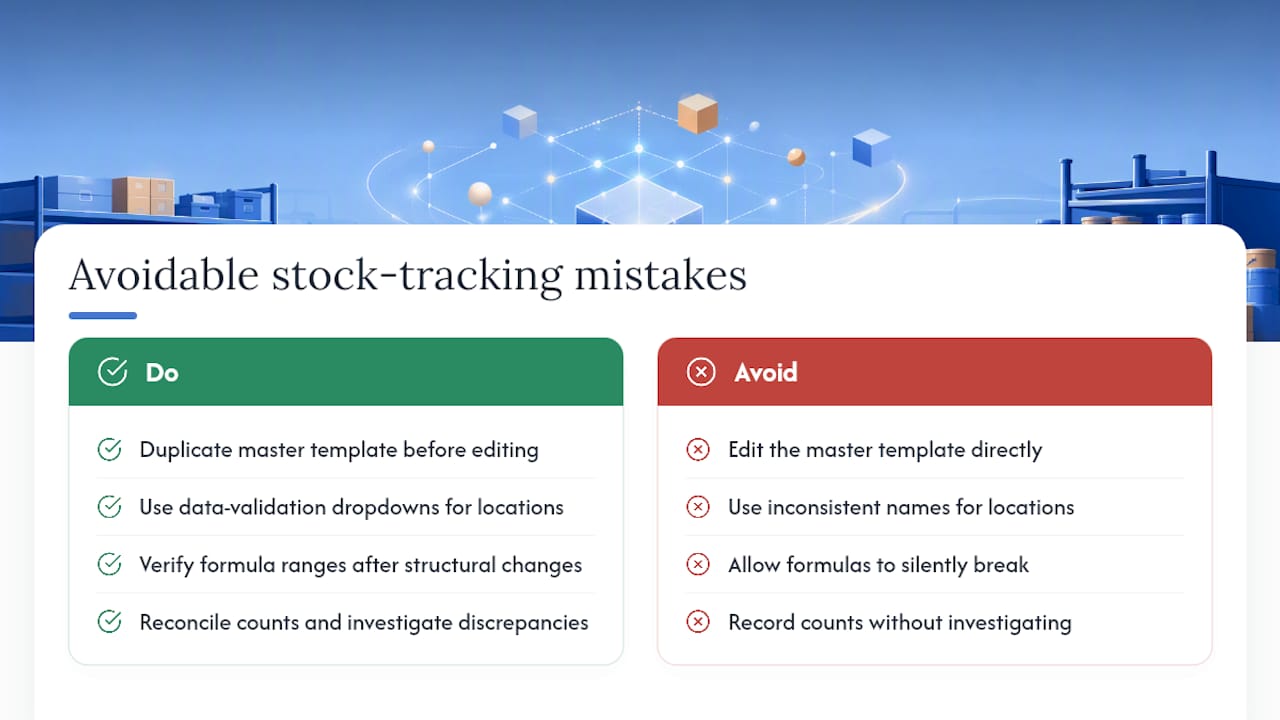
The most common is editing the master template directly, which means one broken formula or accidental deletion ruins the file for everyone using it. Duplicate before you touch anything, always.
A close second is inconsistent naming. “Shelf A”, “shelfa”, and “Shelf-A” read as three different locations to a spreadsheet filter, even though they’re the same place to a human. Data validation drop-downs solve this permanently once you set them up.
Letting formulas silently break is another frequent problem. Someone deletes a row mid-sheet, and a SUM formula that used to cover rows 2 to 50 now stops at row 40 without any visible warning. Check your formula ranges after any structural change to the sheet, not just after you notice the total looks wrong.
Skipping reconciliation after counts is a costly habit too. A count that reveals a discrepancy is only useful if someone investigates why, whether that’s a supplier packing error, a returns mix-up, or theft. Recording the number without asking why wastes the entire point of counting.
Finally, treating every item the same regardless of value or fragility misses an obvious efficiency gain. Forbes Advisor’s rundown of inventory techniques points out that matching the method to the item matters: high-value or perishable stock like sublimation ink deserves tighter, more frequent tracking than low-cost packaging you reorder in bulk without much thought.
How blank stock tracking fits into wider inventory control
A blank spreadsheet template isn’t a competing system to your wider inventory control process. It’s the entry point. The fields you set up (item ID, location, quantity, reorder point) map directly onto what any inventory software or barcode system would ask you to track later, so building good habits now saves a painful data migration if you ever move up.
Think of it in layers. Your spreadsheet handles day-to-day stock levels. A separate reorder log or supplier sheet tracks purchase orders and lead times. A basic sales record, even a simple export from your storefront, tells you which items actually move versus which sit on the shelf. Keeping these as linked but separate sheets, rather than one enormous tab trying to do everything, makes each one easier to audit and less likely to break.
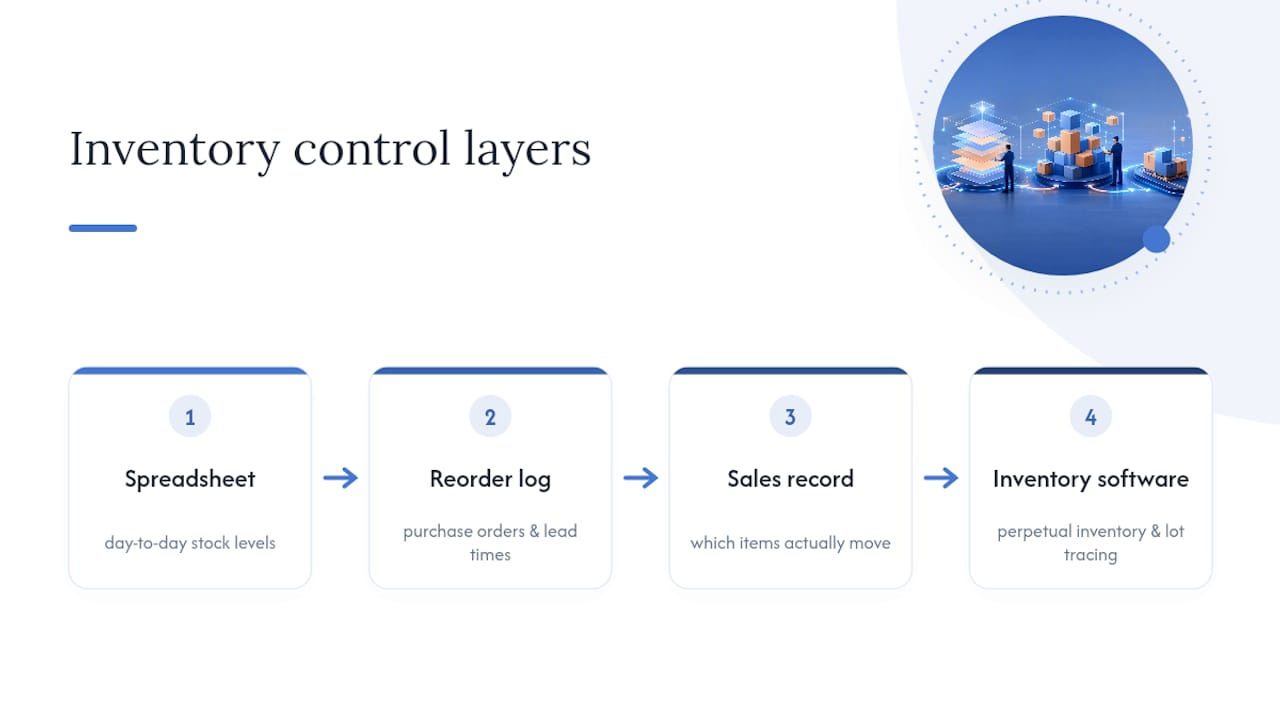
If you eventually shift to dedicated software, this structure transfers cleanly. NetSuite’s documentation on inventory management systems describes how perpetual inventory and lot tracing work at scale, and both concepts are just larger versions of the reorder flag and batch column you’re already running in your spreadsheet. Nothing about starting with a template locks you out of growing later; it just means your first system doesn’t have to be your last one.
How to train staff on blank stock templates without the chaos
The templates fail less often than the training does. Most stock errors trace back to someone never being shown exactly which cell to fill in, not to a flaw in the sheet itself.
Start with a one-page instruction sheet, printed and taped near the stock area if that’s where counts happen. List the three or four things staff actually need to do: which column to update, what format dates go in, and what to do if a count doesn’t match. Keep it shorter than you think it needs to be; a dense instruction manual gets ignored, a four-line list gets followed.
Walk one new person through a live entry before letting anyone loose on the real file. Watching someone add a stock movement themselves, with you checking the formula still calculates afterwards, catches confusion in minutes that would otherwise surface as a wrong total weeks later.
Restrict editing rights where you can. Giving temporary or junior staff access to a filtered, printable view rather than the live spreadsheet removes the risk of an accidental formula overwrite entirely; a physical count sheet with a barcode reference column, handed out for the day, does the same job without any login required.
Revisit the training after the first real discrepancy. That first mismatch is the best teaching moment you’ll get, because it shows exactly where the process broke down, whether that’s a missed update, a naming inconsistency, or someone genuinely unclear on what “reorder point” means.
What most stock advice gets wrong
Most guides on this topic treat the spreadsheet as a stepping stone to “real” software, as if every small business is secretly failing until it upgrades. That’s backwards for most of the makers and print shops actually running this stuff. A well-built spreadsheet, with the right six fields and a decent cycle-count habit, will outperform a poorly adopted piece of software every time. Software doesn’t fix bad habits; it just adds a subscription fee on top of them.
The overrated part of most advice is the obsession with automation before the basics are solid. A reorder flag and a batch column will save you more headaches than any barcode scanner if nobody’s updating the sheet consistently. Get the habit right first.
What actually matters, and what most articles skip, is the batch and lot discipline for consumables. If you’re running sublimation ink or filament through a business, tracking which delivery a roll came from is the one field that turns a customer complaint into a five-minute supplier conversation instead of a guessing game. Start there. Everything else, the drop-downs, the conditional formatting, the printable exports, is worth doing, but it’s polish on top of that one habit.
— chris
Sources
- Free home and business inventory templates
- Free Excel Inventory Templates
- 10 Essential Inventory Management Techniques – Forbes Advisor
- Small Business Inventory Control: Types + Tips (2026) - Shopify


